Your iPhone should charge like a happy little robot sipping juice. But sometimes the cable feels loose. Sometimes nothing happens. Sometimes your iPhone yells about liquid detected, even when the phone looks dry. Do not panic. Most charging problems have simple fixes.
TLDR: First, check your cable, charger, and wall outlet. Then gently clean the charging port, because pocket lint is a tiny villain. If you see a moisture warning, stop charging and let the phone dry. If charging is still slow or random, check battery health or visit Apple Support.
Why Your iPhone Charging Port Feels Loose
A loose charging port does not always mean the port is broken. Many times, the cable cannot sit all the way inside. Why? Because lint, dust, crumbs, or dirt are hiding in the port.
Yes, your pocket is basically a lint factory. Your iPhone lives there. So the charging port becomes a tiny lint cave.
When debris builds up, the Lightning or USB C cable cannot click in properly. It may wiggle. It may charge only at a certain angle. It may stop charging if you breathe near it. Very dramatic.
Common signs include:
- The cable feels loose.
- Your iPhone charges only when the cable is pushed in hard.
- The phone keeps connecting and disconnecting.
- You hear the charging sound over and over.
- The cable falls out easily.
- The battery percentage does not rise.
If this sounds familiar, the first mission is simple. Inspect and clean.
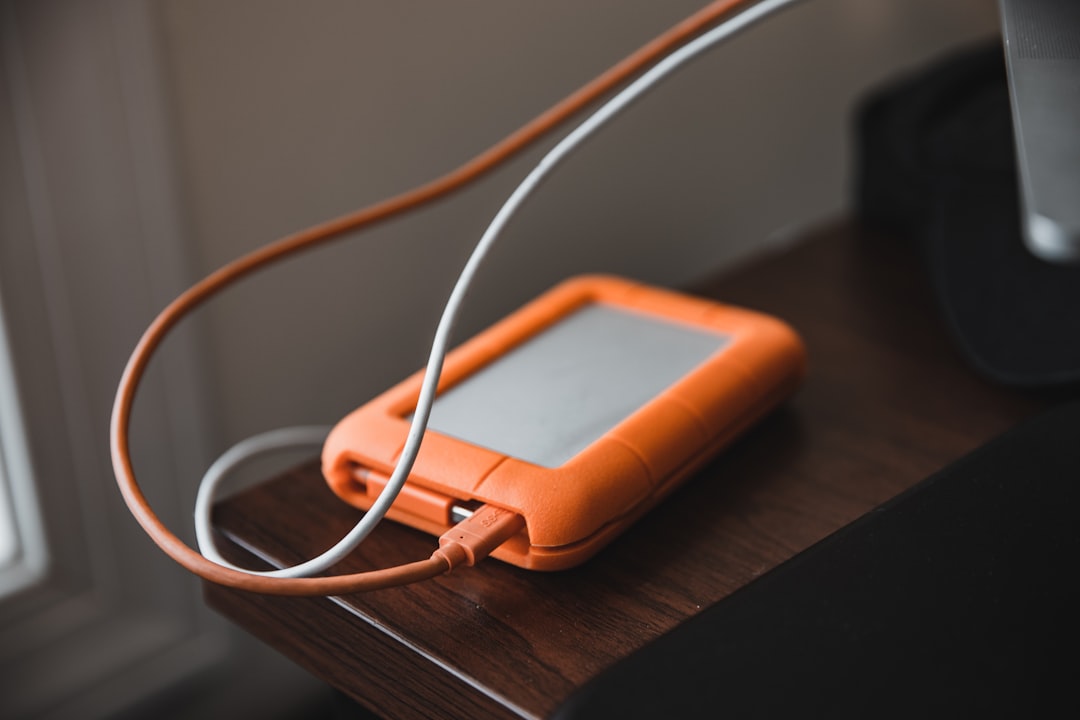
Step 1: Check the Cable First
Before blaming your iPhone, blame the cable. Cables suffer a lot. They get bent, pulled, stepped on, chewed by pets, and stuffed into bags like spaghetti.
Try these quick checks:
- Look for frayed ends.
- Check for bent metal tips.
- Try another cable.
- Try your cable with another iPhone.
- Use an Apple certified cable if possible.
If a different cable works, your port is probably fine. Your old cable is just tired. Thank it for its service. Then retire it.
If no cable works, keep going.
Step 2: Test the Charger and Outlet
The charging brick can also be the problem. So can the wall outlet. Yes, even the wall can be suspicious.
Try this:
- Plug the charger into a different outlet.
- Try a different charging brick.
- Try charging from a computer USB port.
- Try wireless charging, if your iPhone supports it.
If wireless charging works but cable charging does not, the issue may be the port, cable, or wired charging system.
If nothing charges the phone, the battery may be very low or there may be a deeper issue.
Step 3: Clean the Charging Port Safely
This is the big one. A dirty port is one of the most common reasons an iPhone does not detect a cable.
Important: Be gentle. The charging port has small metal contacts inside. They do not enjoy being attacked.
Do not use:
- Metal pins
- Paper clips
- Wet cotton swabs
- Household cleaners
- Compressed air at high pressure
Better tools include:
- A wooden toothpick
- A plastic dental pick
- A soft, dry brush
- A flashlight
Here is the safe method:
- Turn off your iPhone.
- Use a flashlight to look inside the port.
- Gently loosen lint with a wooden or plastic tool.
- Do not scrape hard.
- Shake the phone lightly with the port facing down.
- Try the cable again.
If a little gray lint monster comes out, congratulations. You have defeated the pocket goblin.
After cleaning, the cable should fit more firmly. It should also charge more reliably.
What If the Cable Still Feels Loose?
If the port is clean but the cable still wiggles a lot, there may be physical damage. The port may be worn. The cable tip may also be loose or bent.
Try several cables. If all of them feel loose, the iPhone port may need repair.
Do not force the cable. Do not jam it in. Do not wedge it with tape. That is not a repair. That is a tiny disaster waiting to happen.
If the port is damaged, contact Apple Support or a trusted repair shop. This is especially smart if the phone has been dropped or exposed to water.
Fixes for Slow Charging
Slow charging is sneaky. Your iPhone says it is charging, but the battery crawls upward like a sleepy snail.
Here are common causes:
- A weak charger
- A damaged cable
- A dirty charging port
- Too many apps running
- A hot iPhone
- Old battery health
- Optimized Battery Charging
Try these fixes:
Use a Stronger Charger
Some old power adapters charge slowly. For faster charging, use a USB C power adapter with enough wattage. Many newer iPhones can fast charge with a compatible USB C cable and adapter.
Cheap chargers can be risky. They may overheat. They may charge slowly. They may be poorly made. Use trusted brands.
Stop Using the Phone While Charging
If you game, stream, scroll, and charge at the same time, your iPhone has a hard day. It may charge slowly because it is using power while gaining power.
Give it a nap. Lock the screen. Let it charge in peace.
Keep It Cool
Heat is bad for batteries. If your iPhone gets hot, it may slow or pause charging to protect itself.
Remove the case. Move it out of the sun. Do not charge it under a pillow. Your iPhone is not a sandwich. It needs air.
Understanding the Moisture Error
Sometimes your iPhone says Liquid Detected in Connector. This can happen when moisture is inside the charging port. It can also happen if the cable is wet.
When this warning appears, your iPhone may stop wired charging. That is a safety feature. It helps avoid corrosion and damage.
Do this:
- Unplug the cable right away.
- Turn the phone port side down.
- Tap it gently against your hand.
- Leave it in a dry area with airflow.
- Wait at least 30 minutes.
- Try again later.
If the warning stays, wait longer. It can take several hours for moisture to dry fully.
Do not do this:
- Do not use a hair dryer.
- Do not put the phone in rice.
- Do not stick tissue into the port.
- Do not charge it while wet.
Rice is famous, but not magical. It can leave dust in the port. Then you have two problems. Wet port. Rice dust. Bad party.
Can You Override the Moisture Warning?
Sometimes the iPhone gives an option to override the warning. This allows charging anyway.
Only do this in an emergency. For example, if the phone is almost dead and you need to make a call. Even then, wireless charging is usually safer if available.
If you see the warning often, even when the phone is dry, inspect the cable and port. Try a different cable. Clean the port gently. If it continues, get the phone checked.
Battery Issues That Look Like Charging Problems
Sometimes the port is fine. The cable is fine. The charger is fine. But the battery is tired.
iPhone batteries age over time. They hold less charge. They may drain quickly. They may charge oddly. They may shut down at weird percentages.
Check your battery health:
- Open Settings.
- Tap Battery.
- Tap Battery Health & Charging.
- Look at Maximum Capacity.
If maximum capacity is low, the battery may need service. Apple often recommends service when battery health drops below 80 percent.
You may also see a message saying the battery needs service. That is your iPhone waving a tiny flag.
What Is Optimized Battery Charging?
Optimized Battery Charging is a smart feature. It learns your routine. Then it may pause charging at 80 percent and finish later.
This helps reduce battery wear. But it can make you think charging is broken.
To check it:
- Go to Settings.
- Tap Battery.
- Tap Battery Health & Charging.
- Look for Optimized Battery Charging.
You can turn it off if needed. But for daily use, it is usually helpful.
Restart and Update Your iPhone
Software can be weird. A simple restart can fix charging detection problems. It clears small glitches.
Restart your iPhone. Then plug it in again.
Also check for updates:
- Open Settings.
- Tap General.
- Tap Software Update.
Updates can fix bugs related to charging, battery use, and accessory detection.
When to Get Professional Help
Some problems need expert hands. That is okay. You do not have to become a tiny phone surgeon.
Get help if:
- The port is visibly bent or broken.
- No cable works after cleaning.
- The phone gets very hot while charging.
- You see burn marks or smell something odd.
- The battery swells.
- Moisture warnings keep coming back.
- The iPhone will not charge at all.
Warning: If the screen lifts or the phone looks swollen, stop using it. A swollen battery can be dangerous. Get service right away.
Quick Charging Port Rescue Checklist
Use this mini checklist when your iPhone refuses to charge:
- Try another cable. The cable may be dead.
- Try another charger. The brick may be weak.
- Try another outlet. The wall may be lazy.
- Clean the port. Lint loves hiding there.
- Check for moisture. Let it dry fully.
- Restart the phone. Software needs naps too.
- Check battery health. Old batteries struggle.
- Update iOS. Bugs happen.
- Get repair help. Do not force broken parts.
Tips to Prevent Future Charging Drama
Good charging habits help your iPhone live longer. They also reduce surprise chaos.
- Keep your charging port clean and dry.
- Do not charge in steamy bathrooms.
- Use quality cables and adapters.
- Do not yank the cable out by the cord.
- Keep your phone cool while charging.
- Avoid sleeping with the phone under blankets.
- Use wireless charging when the port is wet.
- Replace damaged cables quickly.
A little care goes a long way. Your iPhone will thank you by not acting like a stubborn toaster.
Final Thoughts
A loose iPhone charging port can feel scary. But most causes are simple. The cable may be bad. The charger may be weak. The port may be full of lint. Or the phone may just need to dry out.
Start with the easy fixes. Check the cable. Check the charger. Clean the port gently. Watch for moisture warnings. Then check battery health.
If the problem continues, do not force it. Get help. Charging ports are small. Repairs can be delicate. But with the right steps, your iPhone can get back to sipping power like a champ.

Where Should We Send
Your WordPress Deals & Discounts?
Subscribe to Our Newsletter and Get Your First Deal Delivered Instant to Your Email Inbox.
Thank you for subscribing.
Something went wrong.